
You save a WordPress change, refresh the page and nothing happens. In most cases the edit is not lost: an older copy is being served from one of several cache layers, or you are editing a different template than the one being displayed.
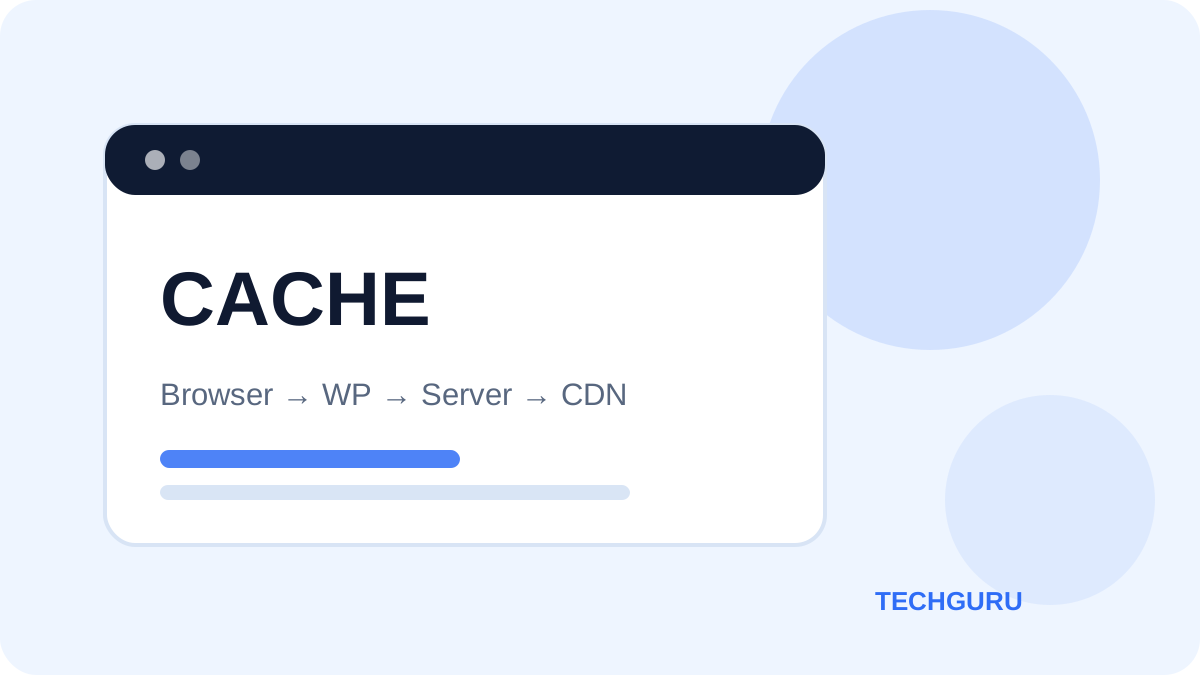
Quick diagnosis
Open the page in a private/incognito window first. If the new version appears there, the problem is probably local browser cache. If it is still old, continue through the server and WordPress checks below.
1. Confirm the change was actually published
Check that WordPress says Published or Updated, not draft or pending. Then copy the public URL into a new private window.
2. Hard-refresh the browser
Use Ctrl+Shift+R on Windows or Cmd+Shift+R on Mac. Hostinger also recommends checking in an incognito/private window when diagnosing stale content.
3. Purge LiteSpeed Cache
If LiteSpeed Cache is installed, go to LiteSpeed Cache → Toolbox → Purge and use Purge All. Hostinger documents this as the normal way to clear the plugin cache. See Hostinger’s LiteSpeed cache guide.
4. Flush Hostinger WordPress cache
Hostinger can also cache WordPress at hosting level. In hPanel open your website, then WordPress → Overview and use the available flush-cache control. See Hostinger’s cache instructions.
5. Purge the CDN separately
If Hostinger CDN or another CDN is enabled, purge that cache too. A CDN is a separate layer, so clearing a WordPress plugin does not necessarily clear it.
6. Check that you edited the active theme
Go to Appearance → Themes. If you uploaded a replacement theme, verify the active theme is the version you intended to change.
7. Check page/template assignment
A page builder, archive template or custom post template can override what you expect to see. Confirm the URL you are viewing is generated by the file or template you edited.
8. Temporarily remove CSS optimisation from the equation
Minification and combined CSS can leave an older generated stylesheet in cache. Purge optimisation caches after CSS changes; avoid changing several optimisation settings at once while troubleshooting.
9. Test from another network or device
If one device still shows the old page, compare it with another device or network. This separates a local cache problem from a site-wide problem.
The fastest order to try
- Private window.
- Hard refresh.
- LiteSpeed Purge All.
- Hostinger cache flush.
- CDN purge.
- Verify active theme/template.
If the site is showing an actual error rather than stale content, move to our WordPress critical error guide.
Cache troubleshooting checklist
Use the symptom to choose the next check instead of changing several settings at once. Make one change, retest the exact URL, and keep a note of what changed.
| Symptom | What it suggests | Next check |
|---|---|---|
| Browser only | Private window shows the update | Hard refresh / clear browser cache |
| WordPress cache | Logged-out visitors see old content | Purge LiteSpeed or active cache plugin |
| Hosting/CDN | Multiple devices see old content | Flush Hostinger cache and CDN |
| Template/theme | Cache purge changes nothing | Verify active theme and serving template |
Before you make a risky change
Take a current backup or restore point before editing configuration files, permissions, PHP settings or database URLs. Avoid deleting unrelated DNS, email, security or rewrite rules simply to see whether the problem disappears.
How to confirm the fix
Retest the exact public URL in a private browser window and, where relevant, on a second device or network. A fix is only confirmed when the original symptom is gone without creating a new error elsewhere on the site.
